
Browshot can fill out a form to log in to a website, then navigate to multiple pages to take screenshots.
With the automation steps you can create rich interactions with a website: click on elements, type into input boxes, etc. Each step contains:
a command:
type: type text, like a username or password
click: click on an element
javascript: execute any JavaScript
sleep: wait for a number of seconds
navigate: navigate to a new URL
screenshot: take a screenshot of the current screen, page, or specific element
an element (optional): a CSS selector targeted by the command
a value (optional): the number of seconds to sleep, the text to type, the URL to navigate to, or the JavaScript code to execute
You can combine any number of steps to replicate any human interactions: expanding elements, filling out forms, submitting credentials, etc.
You can try the automation steps in the dashboard, under Advanced options (premium and private browsers only):
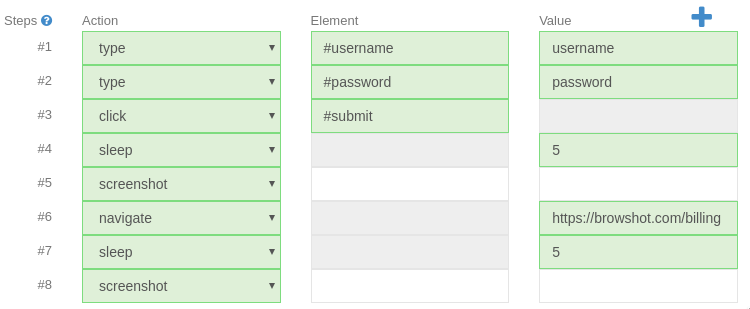
To use the automation steps with the API, add the argument steps=[...] to the screenshot/create API call. The steps are described in JSON format as an array of steps:
[
  {"command": "click", "element": "#login"},
  {"command": "type", "element": "#username", "value":"username@mail.com"},
  {"command": "type", "element": "#password", "value":"PASSWORD"},
  {"command": "click", "element": "#submit"},
  {"command": "sleep", "value": "2"},
  {"command": "navigate", "value": "https://mysite.com/dashboard"},
  {"command": "sleep", "value": "5"},
  {"command": "screenshot"}
]
We have several examples of the use of automation steps on our blog, including how to log in to a website to take screenshots of the user dashboard in this post.
no credit card required